
In a world where 5G promises lightning-fast downloads and seamless streaming, some iPhone users might find themselves longing for the slower, more nostalgic days of 4G. Maybe they’re trying to save battery life or just want to avoid the dreaded “5G anxiety.” Whatever the reason, the question arises: can you actually turn off 5G on your iPhone?
Understanding 5G Technology
5G technology represents the fifth generation of mobile networks, designed to provide faster speeds and lower latency. Some iPhone users express concerns about the implications of using this advanced technology.
Benefits of 5G
Enhanced speeds define 5G, offering up to 100 times faster than 4G technology. Applications load faster when connected to a 5G network. Improved connectivity allows seamless streaming and gaming experiences, even in crowded areas. Increased network capacity supports more devices simultaneously, making smart cities and IoT devices more viable. Enhanced reliability delivers more consistent performance across various scenarios.
Potential Drawbacks of 5G
Battery drain poses a concern with 5G, as devices may consume more energy to maintain connections. Health anxiety also surfaces among users, worrying about prolonged exposure to higher frequency signals. Availability issues can arise, too; users may find limited access in certain regions. When traveling, inconsistent 5G coverage could lead to frustration. Cost implications may affect consumers, as 5G plans often come at a premium compared to 4G.
How to Check Your iPhone 5G Settings
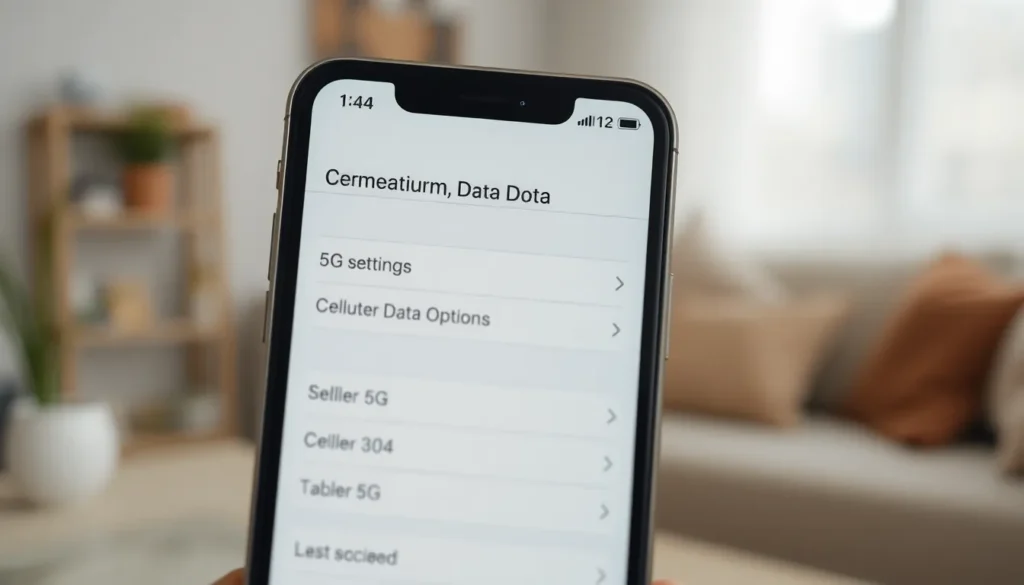
Checking your iPhone’s 5G settings requires navigating through a few steps in the settings app. This process ensures users can manage their network preferences effectively.
Navigating to Settings
First, open the Settings app from the home screen. Look for the option labeled “Cellular.” Tapping on it will display several network-related options. Users should select “Cellular Data Options” to access further configurations. Here, options for managing your data settings are available, including 5G.
Identifying 5G Options
Once in the Cellular Data Options menu, focus on the section that lists Voice and Data. You’ll see choices for 5G, LTE, and 3G. Each option relates directly to network performance and data speed. Selecting the 5G option enables fast connectivity. If the user prefers to turn off 5G, they can select LTE or 3G instead. This adjustment can help manage battery life and reduce data usage effectively.
Steps to Turn Off 5G on an iPhone
Turning off 5G on an iPhone offers users an option to revert to 4G or lower settings for enhanced battery life. Follow these steps to disable 5G from your device.
Turning Off 5G via Settings
Accessing the settings is the first step to disable 5G. Open the Settings app and tap on “Cellular.” From there, select “Cellular Data Options.” Under the “Voice and Data” section, choose “LTE” or “3G.” Adjusting this setting trades faster speeds for improved battery management, particularly beneficial in low coverage areas.
Alternate Methods to Disable 5G
Besides the main settings, users can explore additional methods. Deactivating “5G Auto” under the same “Cellular Data Options” section limits the device to 4G networks whenever available. Additionally, switching on Low Data Mode in the Cellular settings can also help reduce data consumption. Keeping these settings in mind ensures users can customize their connectivity preferences effectively.
Implications of Turning Off 5G
Turning off 5G on an iPhone can lead to several important implications, impacting user experience significantly.
Impact on Data Speeds
Data speeds slow down when users switch from 5G to LTE or 3G. 5G networks deliver speeds up to 100 times faster than 4G, which means users may notice considerable delays in downloads and streaming. Many applications designed for high-speed connectivity may not function optimally. Users engaged in activities like online gaming or video conferencing experience interruptions with slower speeds. Network capacity decreases when turning off 5G, which can hinder performance during peak usage times. Some areas remain without 5G coverage; switching back provides access to a more consistent, albeit slower, connection. Ultimately, users weigh the trade-off between speed and reliability when deciding on their network preferences.
Battery Life Considerations
Battery life improves noticeably when users disable 5G on their iPhones. 5G technology consumes more power than LTE or 3G, especially in low-signal areas where the device works harder to maintain connectivity. Many users report longer usage times when switching to LTE or 3G, as these networks require less energy. Activating Low Data Mode further conserves battery life, reducing background activity and data consumption effectively. Users concerned about battery drain benefit from making this switch. Strategies like combining network preferences with energy-saving modes help extend device longevity during daily use. Prioritizing battery life over data speed becomes crucial, especially for those frequently on the go.
Turning off 5G on an iPhone is a practical option for users who prioritize battery life or seek a more stable connection in areas with limited 5G availability. By adjusting settings in the Cellular menu, users can easily switch back to LTE or 3G, gaining control over their device’s performance and energy consumption. While this may result in slower data speeds, it allows for a more reliable experience during everyday activities. Ultimately, the choice to disable 5G depends on personal preferences and individual usage patterns, making it essential for users to assess their needs and make informed decisions.